Made a mistake setting up your round? No problem. You can edit a round at any time — even after scoring has started.
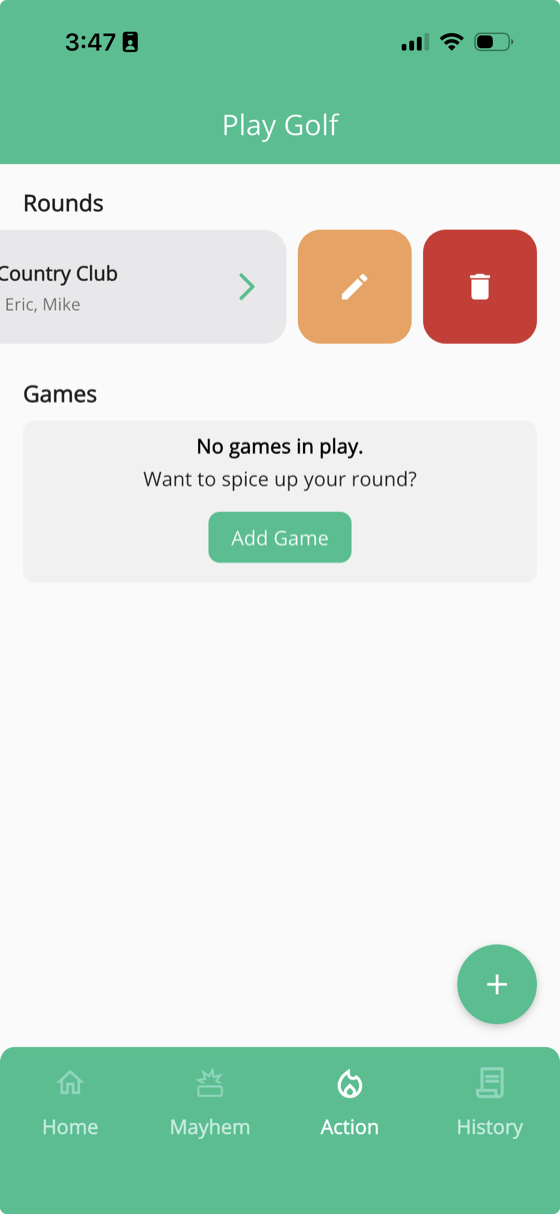
How to edit a round
- Go to the Action tab
- Find the round you want to change
- Swipe the round from right to left to reveal the action buttons
- Tap the orange pencil to edit
What you can change
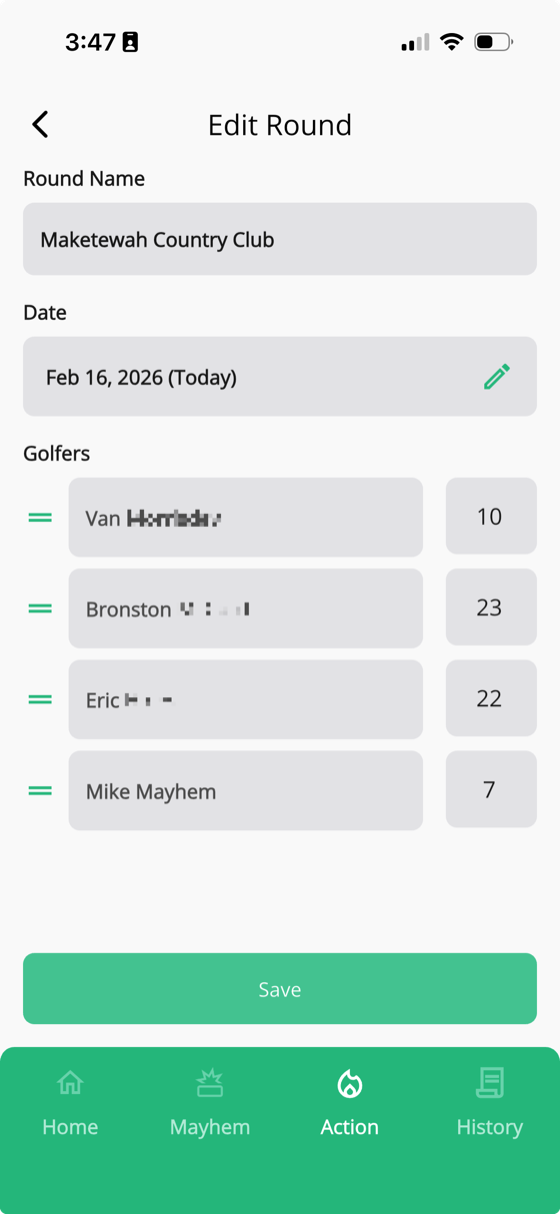
From the Edit Round screen, you can update:
- Round name — rename it to whatever you'd like
- Date — tap the pencil next to the date to change it
- Golfer order — drag golfers to rearrange them
- Course handicaps — tap any golfer's handicap number to adjust it
When you're done, tap Save to apply your changes.
Reorder golfers to match the scorecard
This is the most common reason to edit a round. If your group writes names on a paper scorecard in a certain order, rearranging golfers in GolfApp to match makes scoring much faster — you can just go straight down the list.
Fix a course handicap
Course handicaps are calculated automatically, but sometimes they need a tweak. Maybe Greg was listed as an 8, but he's really a 6 course handicap (we all know a Greg). Just tap his number on the Edit Round screen and fix it.
This only changes the handicap for that specific round — it won't affect the golfer's profile.
Tip: If a golfer's handicap is consistently wrong, the fix might be in their profile settings rather than on a per-round basis. See Updating your handicap for more.