
Every round has a Photos section. Add the shots from your day, and they stay with that round alongside the games and the money.
Six months from now, when someone asks how that trip went, the scorecard and the pictures are in the same place.
Adding a photo
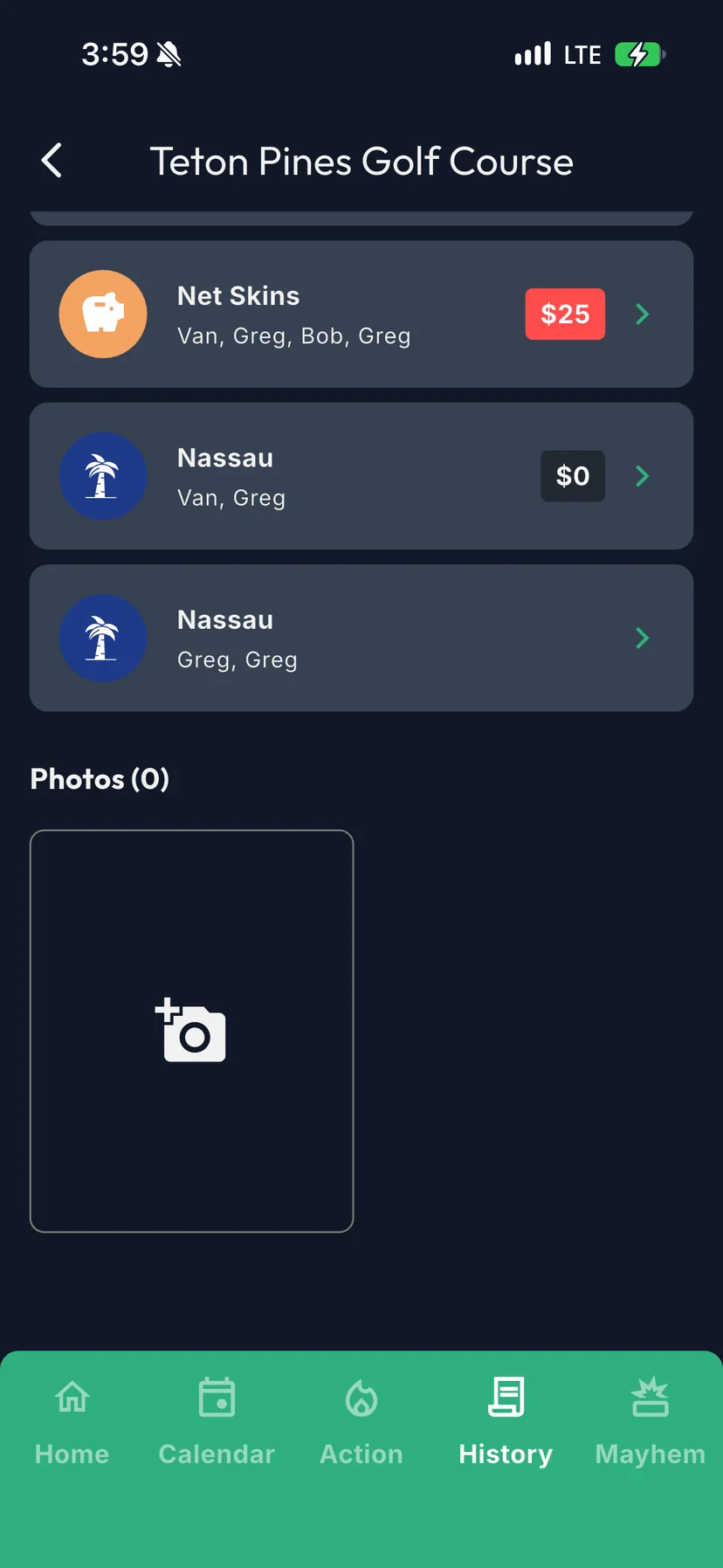
- Open the round. From the History tab, tap it in the list.
- Scroll to the bottom, past the games, to Photos.
- Tap the tile with the camera icon.
- Choose a photo from your library.
To add more, tap the camera tile again. Newest photos show up first.
Take them on the course, add them later. Photos come from your library, so you can snap away during the round and add the good ones once you're in the clubhouse.
Replacing or deleting a photo
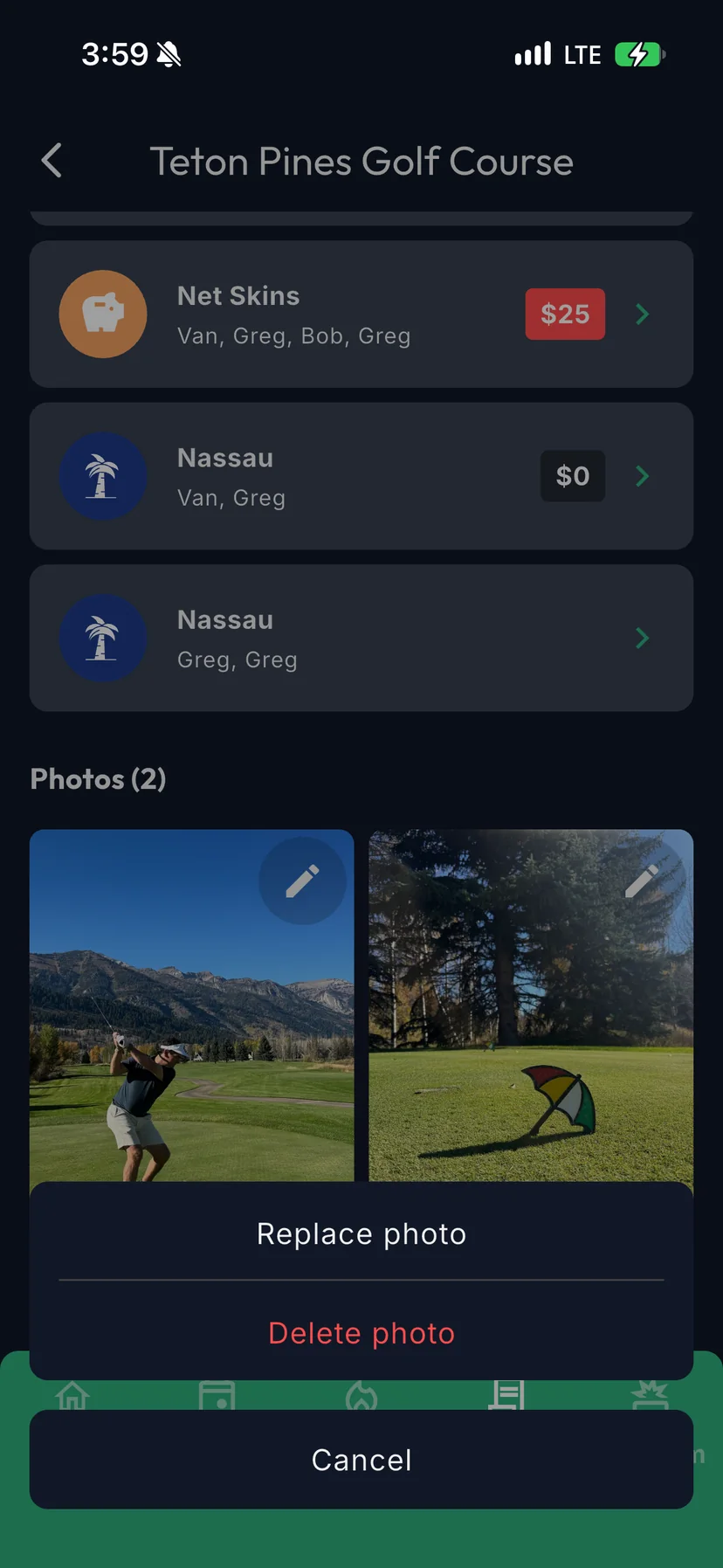
Tap the pencil in the corner of a photo, then choose Replace photo to swap in a different one, or Delete photo to remove it.
You can only edit photos you added. The pencil won't appear on anyone else's.