A Group is a saved list of golfers. Your Saturday regulars, the twelve guys on the Pinehurst trip, your league — whoever you play with over and over. Build the list once and it's waiting for you every time you set up a round or add a game.
A group can hold your friends and other GolfApp users who aren't on your friends list. That matters on trips, where half the group is somebody else's buddy.
Where to find Groups
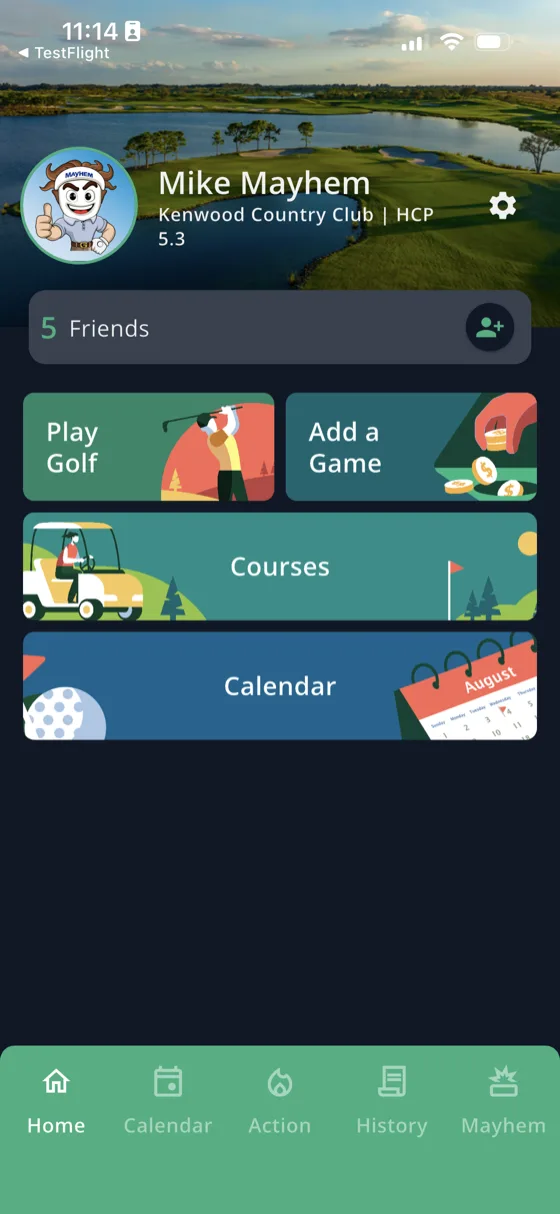
Groups live next to your friends list.
- Go to the Home tab
- Tap your friend bar — the row showing your friend count
- Switch to the Groups tab at the top
That's where you build and manage them. Once a group exists, though, it turns up everywhere you pick golfers — creating a round, sending round invites, setting up a game, and more.
Tip: Any time you're in an Add Golfers window, look for the Groups tab. If your group is in there, you're two taps from adding everyone.
Create a group
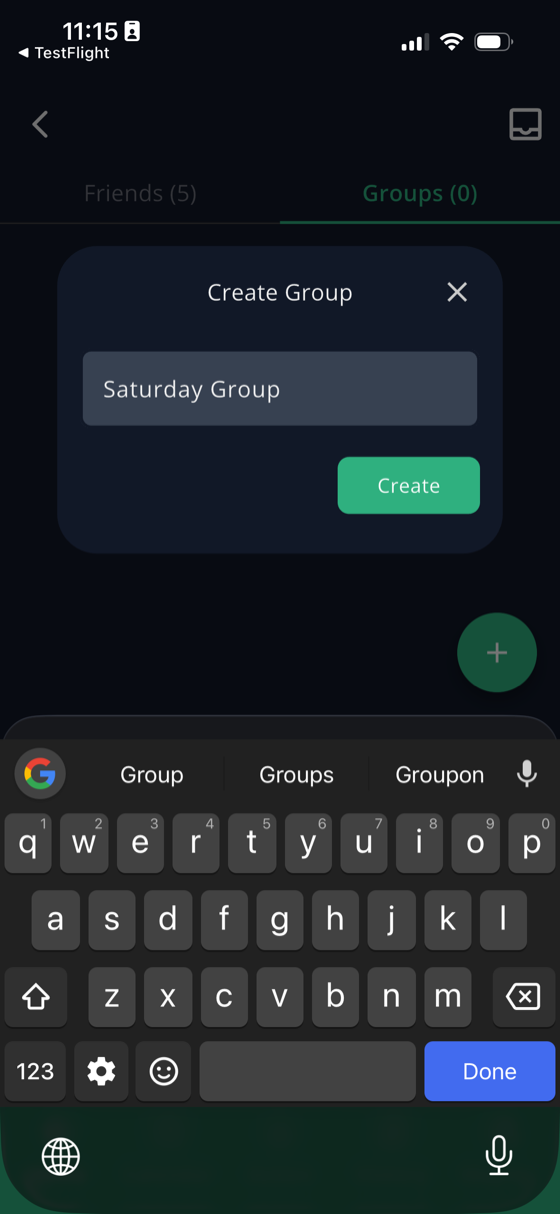
On the Groups tab, tap Create Group — or the green + button in the corner if you already have groups.
Give it a name you'll recognize at 6 a.m. on a first tee. Saturday Group, Bandon 2026, Thursday League. Tap Create and the group is saved, empty, ready for people.
Add people to your group
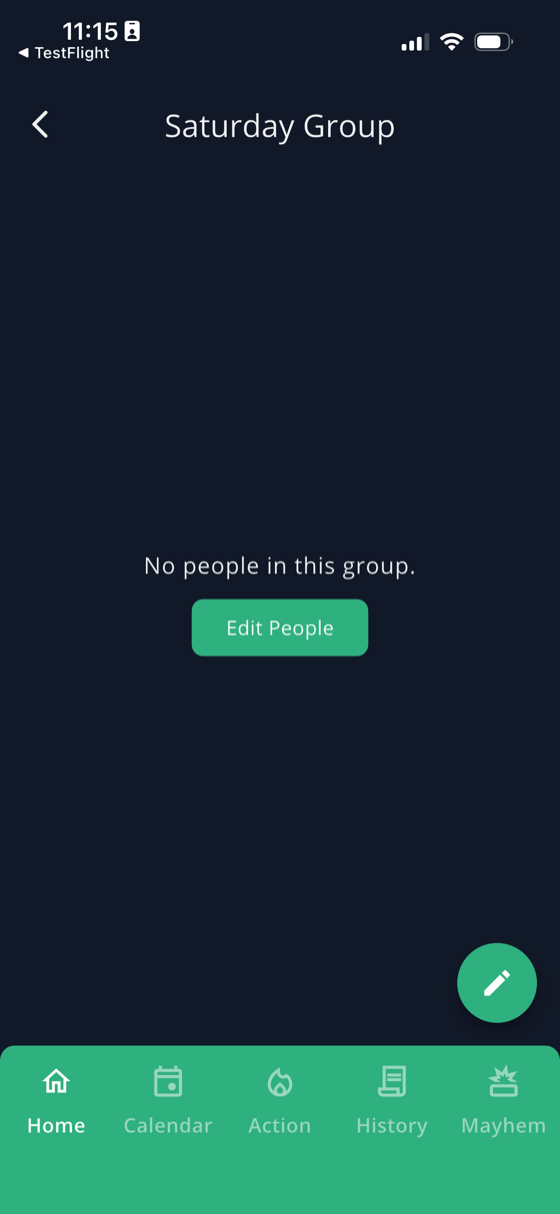
A new group starts empty. Open it from the Groups tab and tap Edit People.
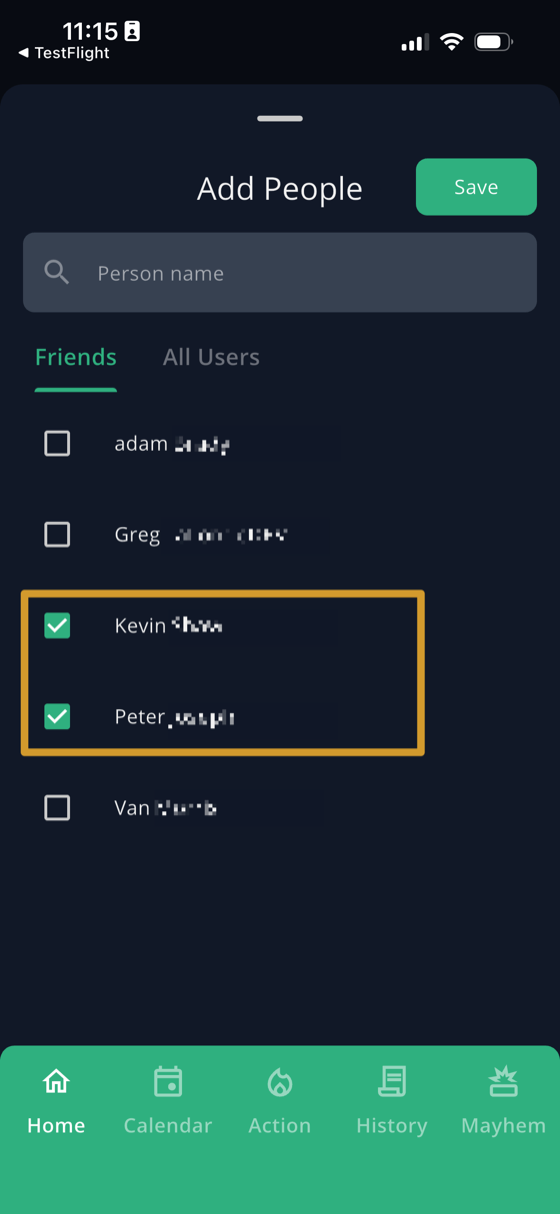
You'll get a checklist with two tabs:
- Friends — everyone on your friends list
- All Users — anyone on GolfApp, friend or not
Check off everyone who belongs, or search by name to jump straight to someone. Tap Save when you're done.
Tip: You don't have to be friends with someone to put them in a group. Use the All Users tab for the guys you only see on the trip.
Your group, saved
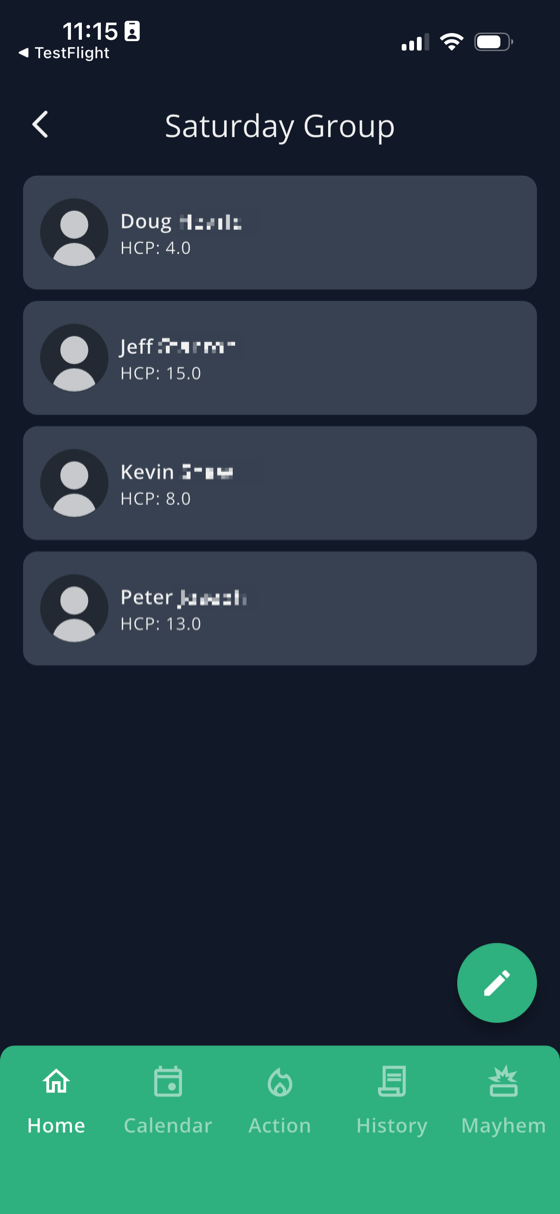
The group now shows everyone in it along with their handicap index, so you can see the spread before you set the game.
From here you can add and remove golfers whenever you need to — tap the pencil button and check or uncheck people. Groups aren't locked in.
Using a group to set up a round or a game
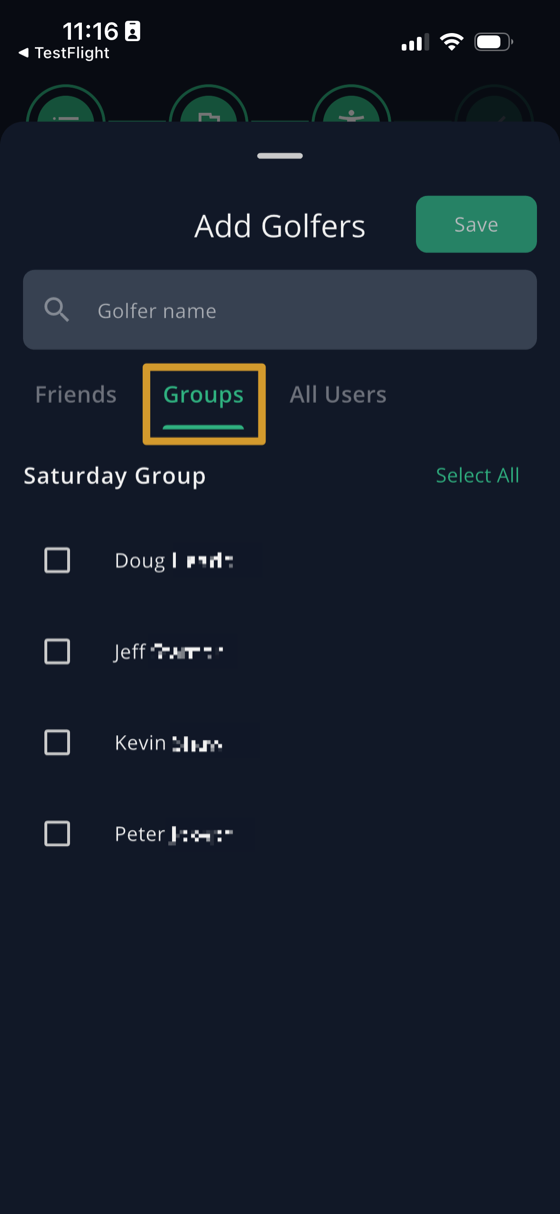
This is the part that saves you the time. Any time you're on an Add Golfers screen — creating a round, or adding players to a game — there's a Groups tab alongside Friends and All Users.
- Tap the Groups tab
- Find your group
- Tap Select All to add everyone at once — or check off just the ones who showed up
- Tap Save
Say the whole trip is in on the skins game. Add Skins, get to the golfer list, hit the Groups tab, tap Select All, done. No scrolling your friends list looking for eleven names, no worrying you forgot somebody.
Editing and deleting a group
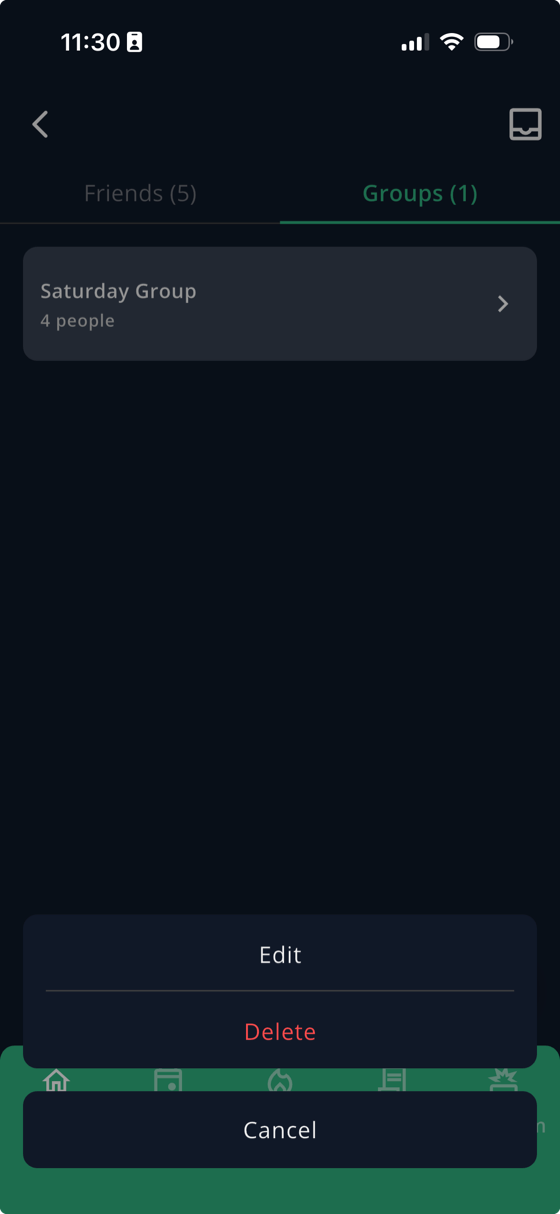
Golf groups change. Somebody moves, somebody new joins the game, the trip roster shifts. You can add and remove golfers from a group at any time — open the group, tap the pencil button, and check or uncheck people. Every round and game you set up afterward picks up the change.
And when a group has run its course — the trip's over, the league wrapped up — you can delete it:
- Go to the Groups tab
- Press and hold the group until the options appear at the bottom of the screen
- Tap Delete — or Edit if you just want to change it
Tip: There's no reason to delete a group just because the season ended. Leaving it around means next year's trip is already set up.
When groups are worth it
- Golf trips — one group for the whole trip means every round and every game starts from the same roster
- Weekly games — the same eight guys every Saturday, added in two taps
- Leagues and outings — a big list you'd never want to rebuild by hand
- Games everyone's in — season-long skins, a trip-wide Nassau, anything where the field is the whole group
You can have as many groups as you want, and people can be in more than one. Your Saturday regulars can also be on the trip list.